How to Move Everything to a New Computer
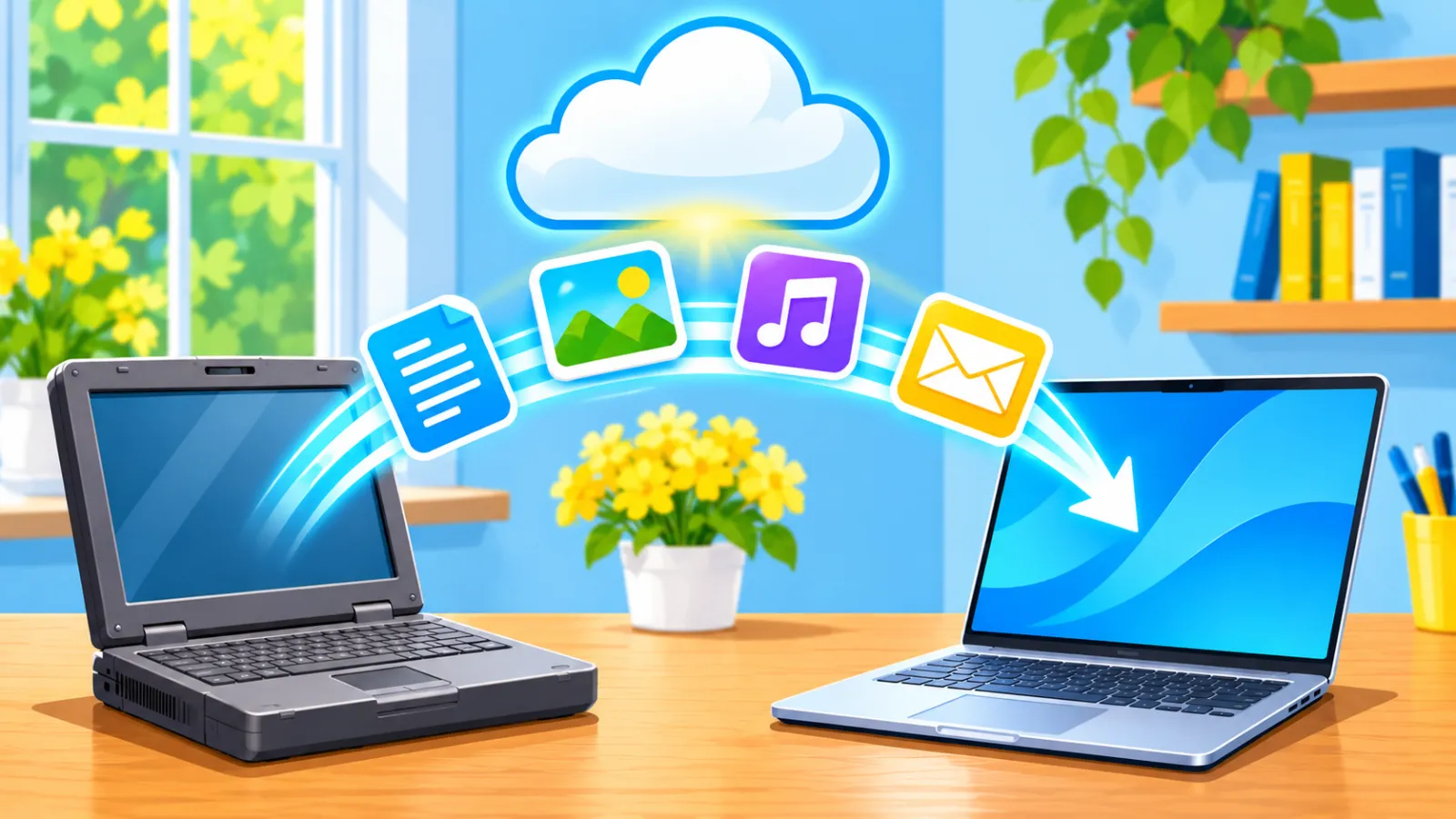
To move everything to a new computer, make a list of what you need, back it up, then restore it on the new machine. On Windows, the Windows Backup app does most of the work with your Microsoft account. On a Mac, Apple’s Migration Assistant copies almost everything for you. Programs and printers usually need to be set up again.

Step 1. Make a List of What to Move
Most people need more than their files. Check off each one:
- Documents, photos, videos and music
- Web browser bookmarks and saved passwords
- Email, contacts and calendars
- Programs you paid for, plus their license keys or account logins
- Printer and scanner setup
- Wi-Fi password
Step 2. Back Up Before You Do Anything Else
Copy your important files to an external drive or cloud storage before you start. If anything goes wrong during the move, you still have a copy. Never wipe or recycle the old computer until you’ve confirmed everything made it over.
Step 3. Move Your Files on Windows
- On the old PC, search for Windows Backup and open it.
- Sign in with your Microsoft account and choose your folders, settings and apps.
- When you set up the new Windows 11 PC, sign in with the same Microsoft account and choose to restore from your backup.
Two things to know. Your files back up to OneDrive, and the free OneDrive plan has 5 GB of space, so large photo libraries may need more storage or an external drive. Also, Windows Backup restores your list of apps, but many programs still need to be reinstalled from the company that makes them.
Step 4. Move Your Files on a Mac
- Turn on both Macs and keep them near each other on the same Wi-Fi.
- On the new Mac, open Migration Assistant (in Applications, then Utilities).
- On the old Mac, open Migration Assistant too, then follow the steps to send your information.
Step 5. Bring Over Passwords and Bookmarks
If you use Chrome, Edge or Firefox, sign in to the browser on the new computer and turn on sync. Your bookmarks and saved passwords come back automatically. If you’ve never signed in to your browser, export your passwords and bookmarks from the old computer first.
Step 6. Set Up Email, Printers and Programs
Most email accounts (Gmail, Outlook.com, Yahoo and work accounts) live online, so you just sign in again. Older email setups may store messages only on the old computer, so check before you wipe it. Install your programs, enter your license keys and add your printer. See our email help if you get stuck.
Step 7. Check Everything, Then Retire the Old Computer
Open a few documents, find a few photos and send a test email. When you’re sure, wipe the old computer before you give it away or recycle it. Read how to safely dispose of an old computer.
Want Us to Do It for You?
Our new computer setup service moves your files, settings, email and passwords, installs your programs and connects your printer. We can do it online or at your home or office near Bloomfield, NJ. Not sure you need a new computer yet? Read repair or replace your old computer?