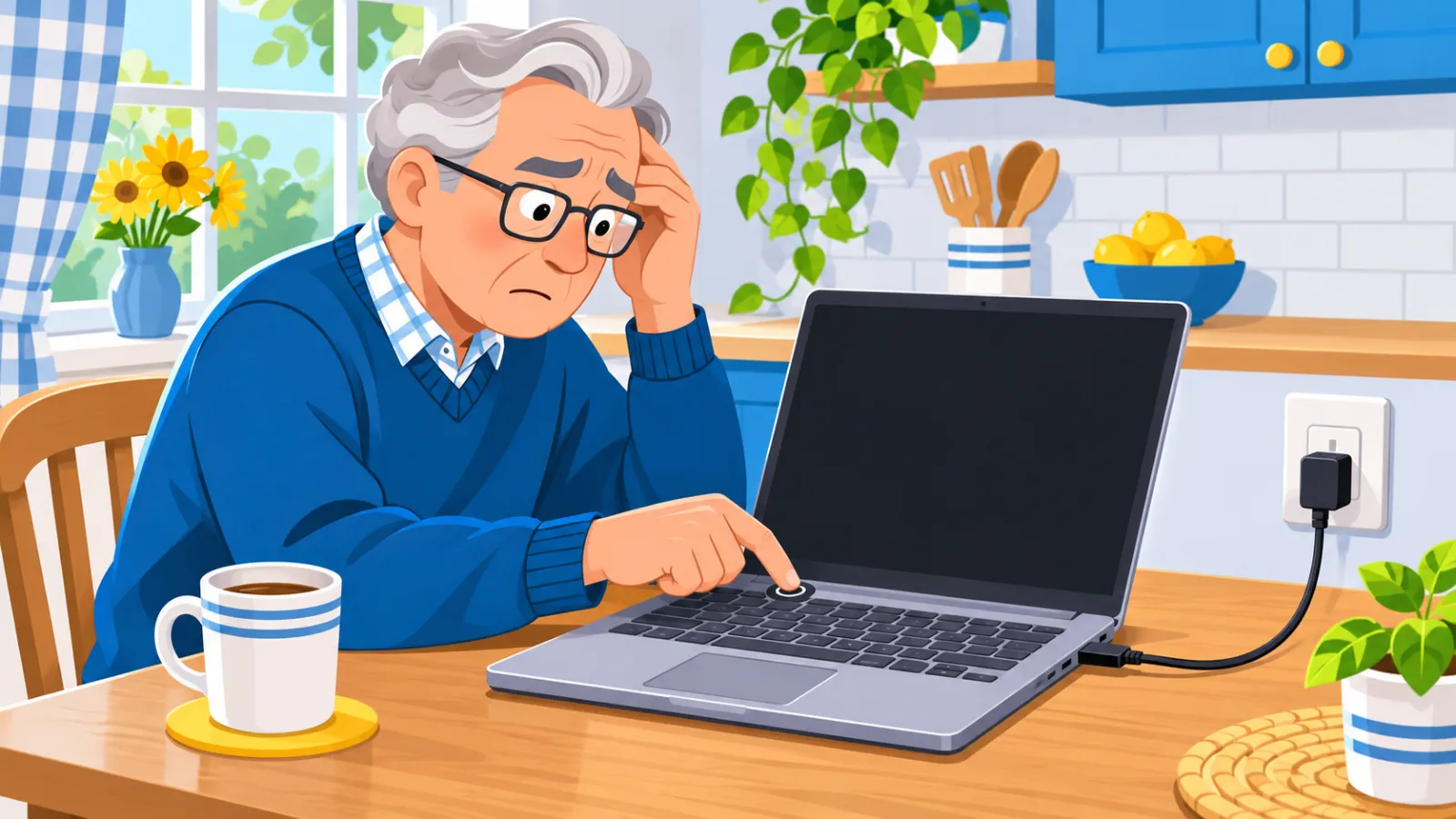
Laptop Won’t Turn On? 7 Things to Try First
Most laptops that “won’t turn on” aren’t dead. The problem is often the charger, a fully drained battery or a black screen on a laptop that’s actually running. Try these 7 steps in order. They take about 15 minutes and won’t hurt anything.
Stop first if: you smell burning, the case is bulging or the keyboard is lifting, or the laptop got wet. Unplug it, don’t charge it and call us. A swollen battery can be a fire risk.
1. Check the Charger and the Outlet
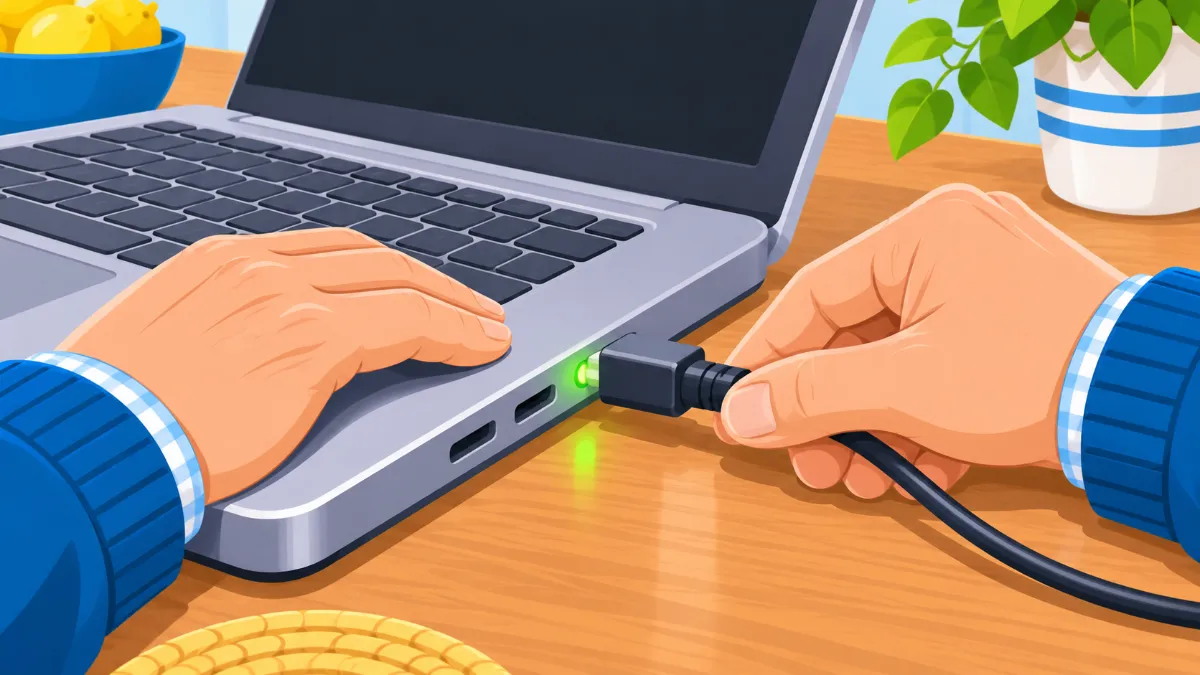
Plug a lamp into the same outlet to make sure it works. If your charger has a light, check that it’s on. Push the plug all the way into the laptop, then try a different outlet. Skip power strips for now, since a switched-off strip is an easy thing to miss.
2. Let It Charge for 30 Minutes
A battery that’s completely drained may not respond right away. Leave the laptop plugged in for 30 minutes and look for a charging light near the power port or on the front edge. Then press the power button once.
3. Do a Hard Reset
This clears leftover power that can leave a laptop stuck.
- Unplug the charger and everything else: USB drives, mouse, docks and printer cables.
- If your laptop has a battery you can slide out, remove it.
- Hold the power button down for 30 seconds.
- Put the battery back, plug in only the charger and press the power button once.
4. Look for Signs of Life
A laptop with a black screen may be running fine. Listen for a fan, and look for keyboard lights or a Caps Lock light that turns on and off. If you see signs of life, the screen may be the problem.
- Press the brightness-up key a few times.
- Connect the laptop to a TV or monitor with an HDMI cable.
If the picture shows up on the TV, the laptop screen or its cable likely needs work. That’s a job for laptop screen repair.
5. Wake Up the Display
On Windows, press Windows key + Ctrl + Shift + B. You may hear a beep as the display restarts. On a Mac, hold the power button for 10 seconds, let go, then press it once more.
6. Watch What Happens When It Starts
If the laptop turns on but stops at the logo, shows a blue screen or keeps restarting, the hardware is likely working. That’s usually a software problem. Write down any error message and call us. See our guide to fixing computer errors.
7. Try Another Charger
Chargers wear out more often than laptops do. Borrow one that matches your laptop’s plug and wattage (the number with a “W” on the label). For laptops that charge with USB-C, use a laptop charger, not a phone charger. Phone chargers usually don’t have enough power.
Still Won’t Turn On?
Time to call a pro. A worn-out battery, a loose charging port or a failed part can all cause this, and most are fixable. We pick up your laptop near Bloomfield, NJ, fix it and bring it back. See our laptop repair and laptop battery replacement services.
Worried about your files? A laptop that won’t turn on doesn’t mean your photos and documents are gone. The drive inside is often fine. If it isn’t, our data recovery services start with a free diagnostic.